
Keep Physical Gift Cards Out of Discounts
Set up Shopify discounts so Totus physical gift cards are always charged full price
Your Totus physical gift card is a regular Shopify product, not a Shopify gift card. That means an Amount off order discount takes money off the gift card along with everything else in the cart.
This guide shows how to run the same promotions as product discounts that cover everything in your store except gift cards. It is for brands that sell Totus physical gift cards in Shopify, and for the Shopify partners who set up their discounts. Screenshots are from a Totus test store, so your product names will differ.
Gift card promotions you plan on purpose, such as a bonus card offer, stay separate. Set those up with your Totus Client Success Manager.
How it works
Section titled “How it works”Two collections and one discount type do the work. You can name the collections anything; this guide uses the names below.
- Non-discountable items holds every gift card product.
- Discount-eligible items holds all your products, minus everything in Non-discountable items.
- Each promotion is an Amount off products discount that applies only to Discount-eligible items.
- At checkout, merchandise gets the discount. Gift cards are charged their full amount.
- When you add a new gift card product, you put it in Non-discountable items before you publish it.
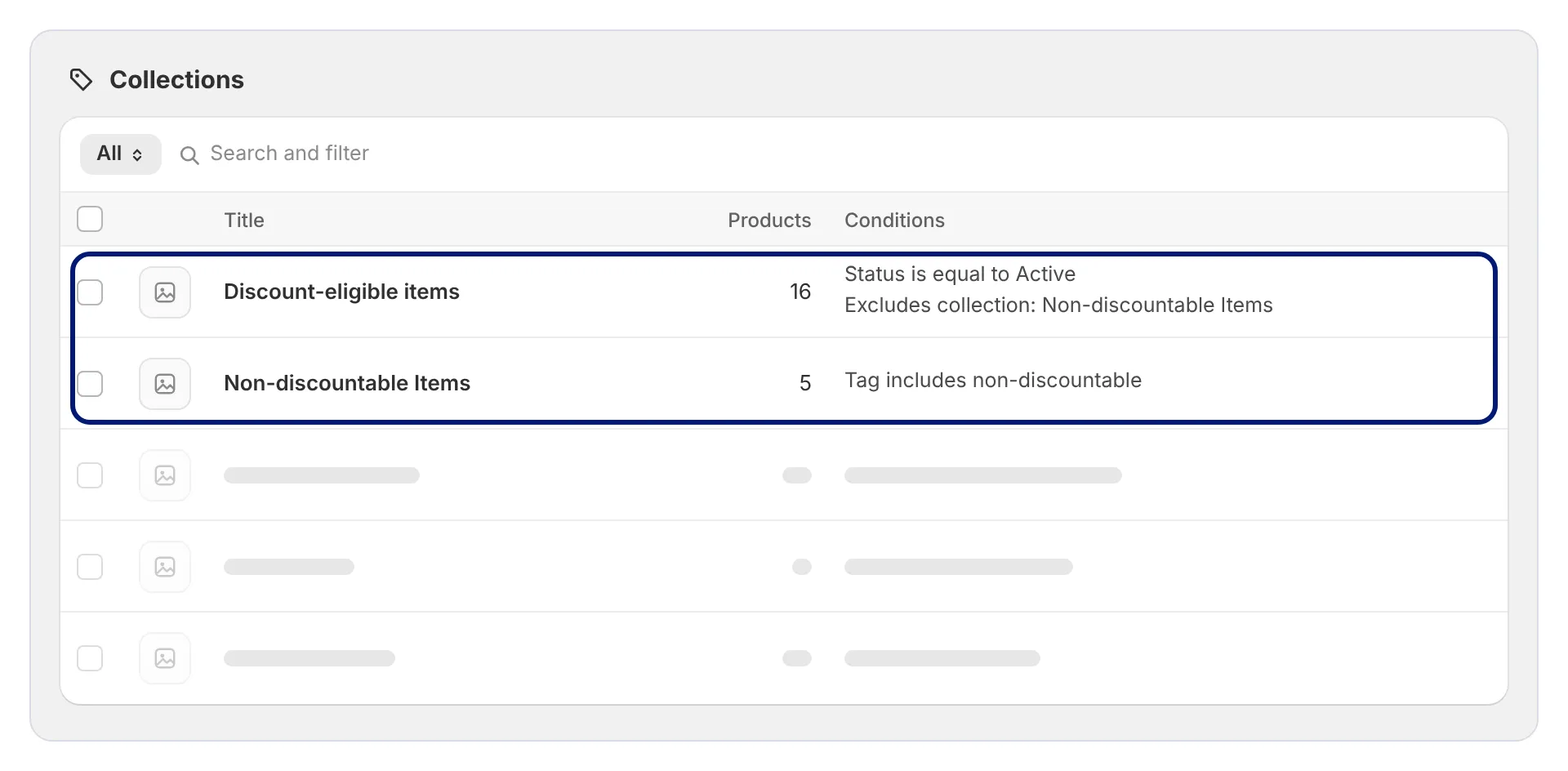
Figure 1. The finished setup in Products › Collections: two collections, each with its rule shown under Conditions.
What you’ll do
Section titled “What you’ll do”| Part | Task | Where |
|---|---|---|
| 1 | Make the two collections and check them | Products › Collections |
| 2 | Set up every new promotion as Amount off products, never Amount off order | Discounts › Create discount |
| 3 | Move your current order discounts: convert them with the Admin API, or replace them in the admin | Admin API or Discounts |
| 4 | Test, then go live | Your storefront checkout |
Your Totus Client Success Manager can confirm which of your products and variants are Totus gift cards.
Before you start
Section titled “Before you start”- Check which collections screen your store has. Open Products › Collections and any collection. If you see sources (Products, Variants, Collection, App) and an Exclude option, you have the new collections model. If not, you have legacy smart collections; use the tag method in Step 2.
- List every gift card product and variant in your store.
- List your active and scheduled order discounts, with their codes, limits and dates.
- Decide how you will move existing order discounts. Converting with the Admin API keeps codes and history. Replacing them in the admin creates new discounts and needs a naming plan (Part 3).
- Pick a quiet time to switch. Customers with a code in hand should not notice.
A product discount is not an order discount
Section titled “A product discount is not an order discount”The switch keeps gift cards out, but it can change how a promotion behaves. Review these four settings on every discount you move.
| Setting | As an order discount | As a product discount |
|---|---|---|
| What it applies to | Every item in the cart | Only items in Discount-eligible items |
| Fixed amount, for example $10 off | Once per order | Once per eligible item, unless Only apply discount once per order is on |
| Minimum purchase | The whole cart counts | Only eligible items count; gift cards no longer help reach it |
| Combinations | Order discount rules | Product discount rules; check the other discounts it must combine with |
Part 1: Set up the collections
Section titled “Part 1: Set up the collections”Step 1. Make Non-discountable items
Section titled “Step 1. Make Non-discountable items”Go to Products › Collections › Add collection.
- Title it Non-discountable items. A short description helps the next person who opens it.
- Under Sources › Products, add the condition Tag includes non-discountable. A tag rule picks up new gift card products as soon as they are tagged.
- Leave the collection unpublished on all sales channels (0 channels). Discounts can still use it.
- Save.
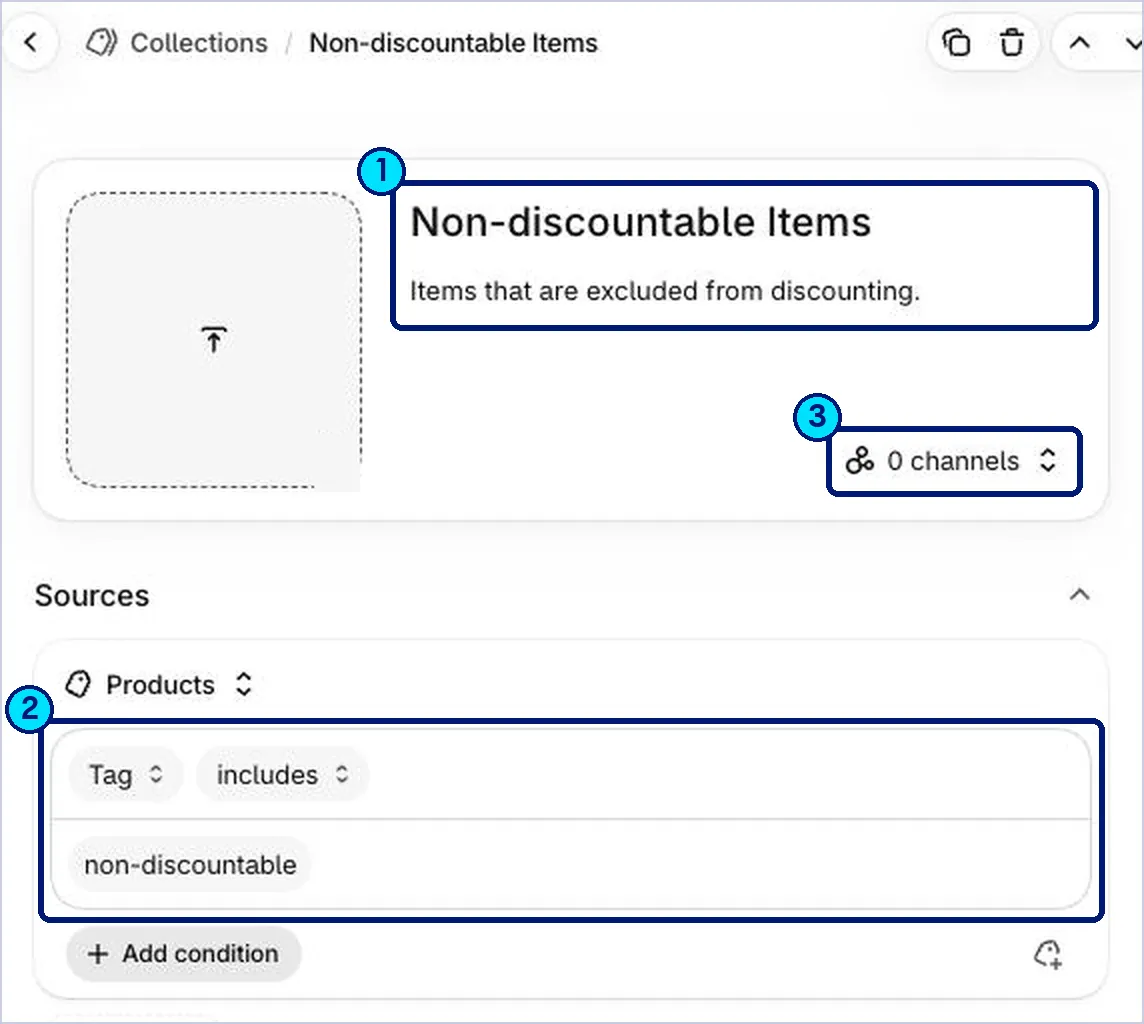
Figure 2. Non-discountable items, configured with a tag rule and no sales channels.
- Title and description.
- Condition: Tag · includes · non-discountable.
- 0 channels: the collection is hidden from shoppers but still usable by discounts.
Tag each gift card product. Open each gift card product and add the tag non-discountable under Product organization › Tags, then save. The product joins the collection automatically.
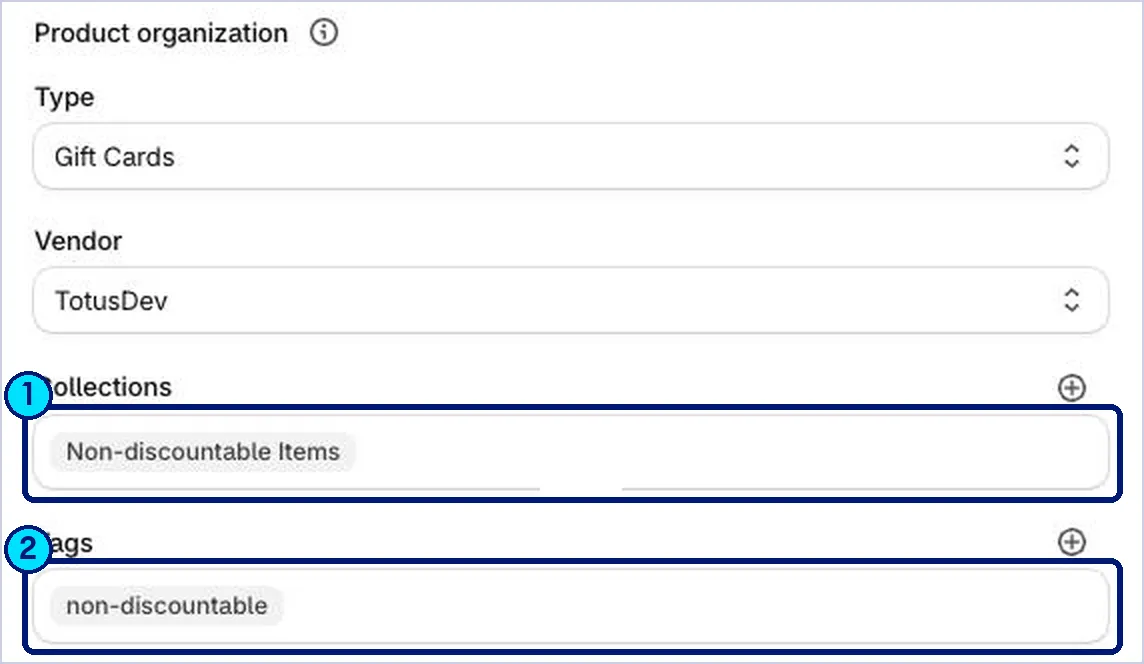
Figure 3. A gift card product with the tag applied. Shopify lists the collection it now belongs to.
- Collections shows Non-discountable Items once the tag is saved. You don’t add it here by hand.
- Tags includes non-discountable.
Scroll to Collection items and confirm that every gift card product is listed.
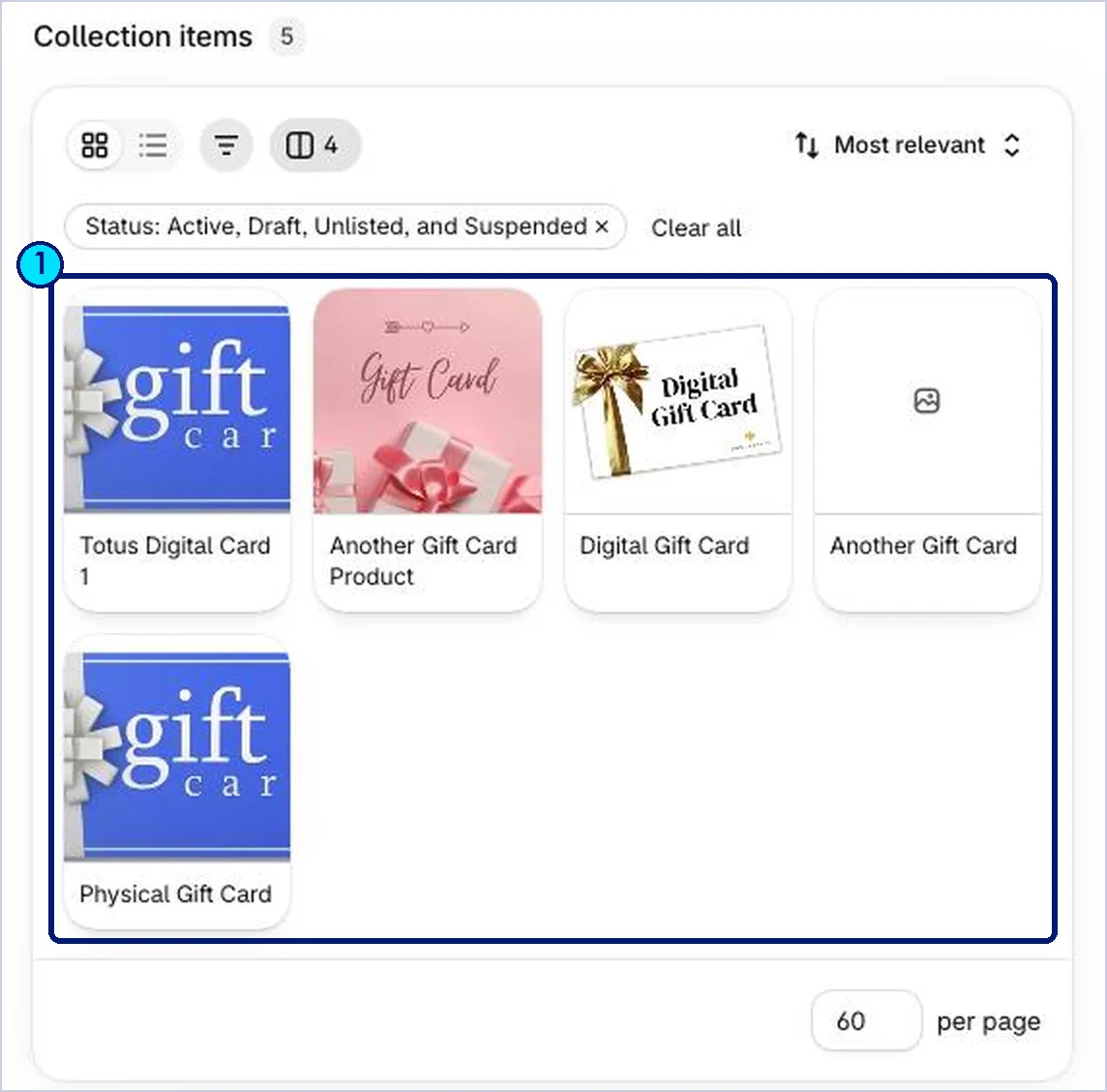
Figure 4. Collection items in Non-discountable items, listing every gift card product.
- Every gift card product (physical and digital) appears here. Anything missing needs the tag.
Step 2. Make Discount-eligible items
Section titled “Step 2. Make Discount-eligible items”Go to Products › Collections › Add collection.
- Title it Discount-eligible items.
- Include: in the Products source, add Status is equal to Active. This takes every product that is live, whether or not it tracks inventory.
- Exclude: click Exclude, switch Products to Collection, and add Non-discountable items. An exclusion always wins over an inclusion, so a gift card stays out even though it is Active.
- Leave it unpublished on all sales channels, and save.
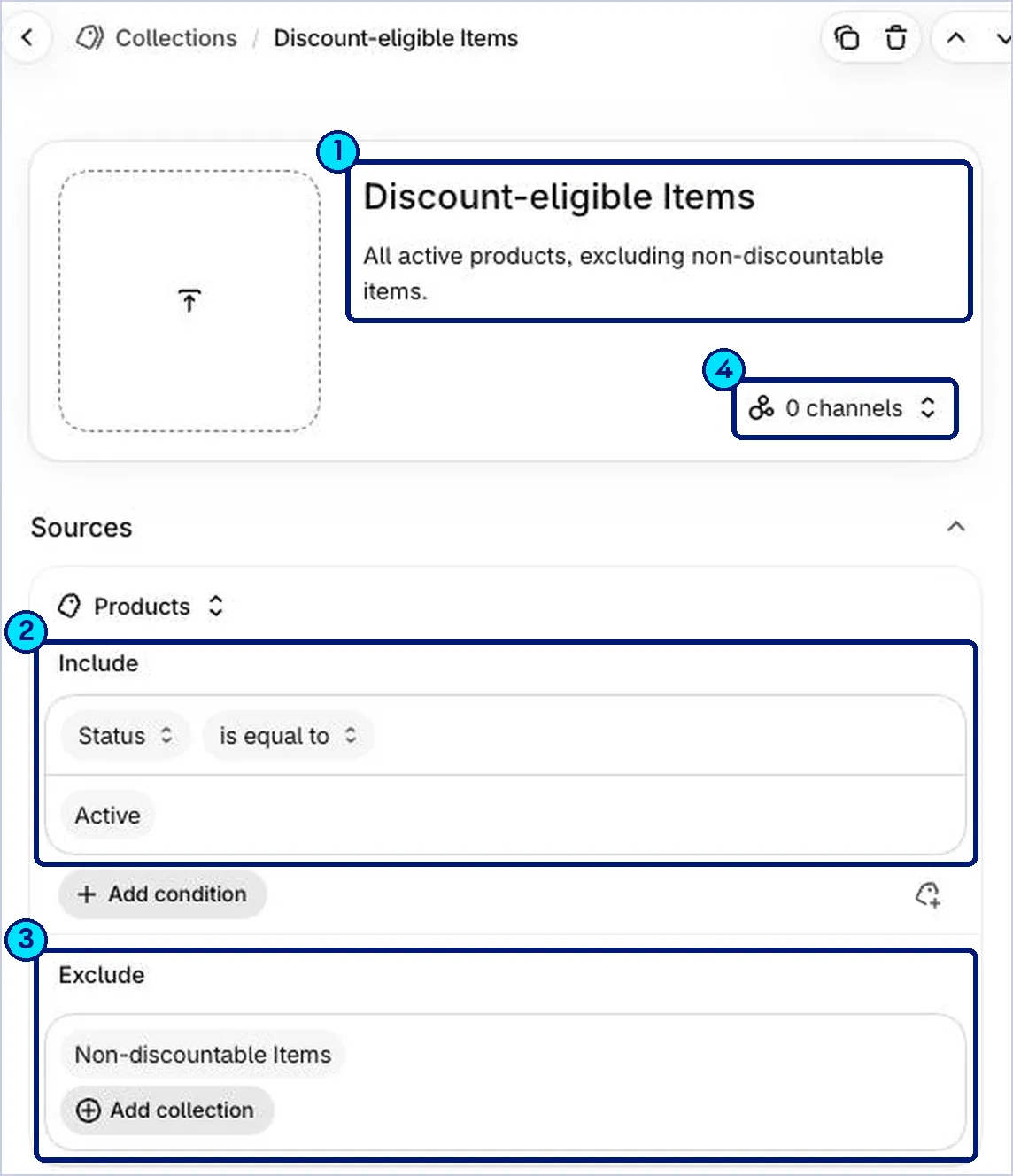
Figure 5. Discount-eligible items: every active product, minus the Non-discountable items collection.
- Title and description.
- Include: Status · is equal to · Active.
- Exclude: the Non-discountable Items collection.
- 0 channels: unpublished.
Step 3. Check it
Section titled “Step 3. Check it”Open Discount-eligible items and scroll to Collection items. Search for each gift card product. None should appear. Then open a few ordinary products and confirm they do.
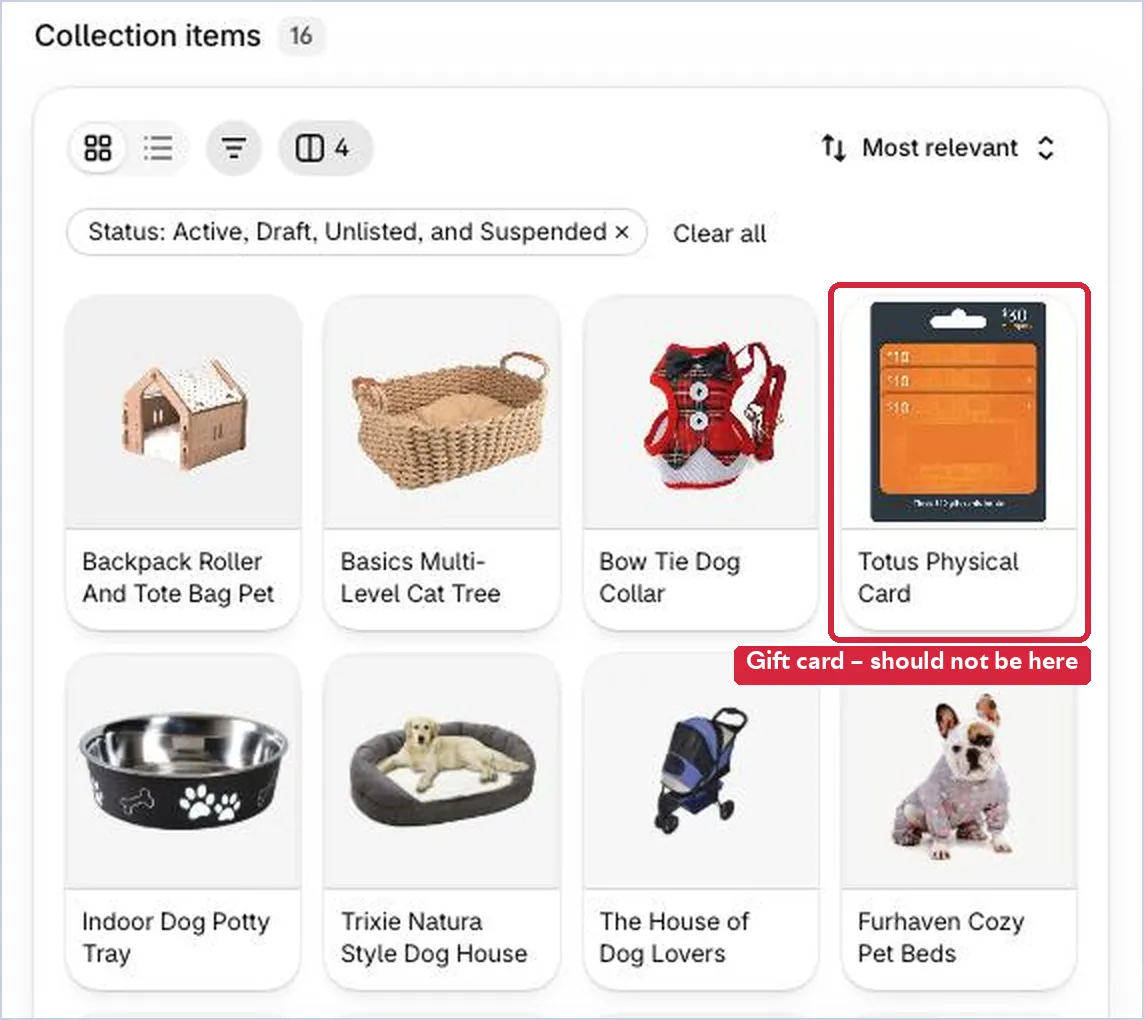
Figure 6. A miss caught by the check. This gift card was never tagged, so it is still discountable.
Part 2: Set up each discount
Section titled “Part 2: Set up each discount”Go to Discounts › Create discount › Amount off products. Use this for every new store-wide promotion.
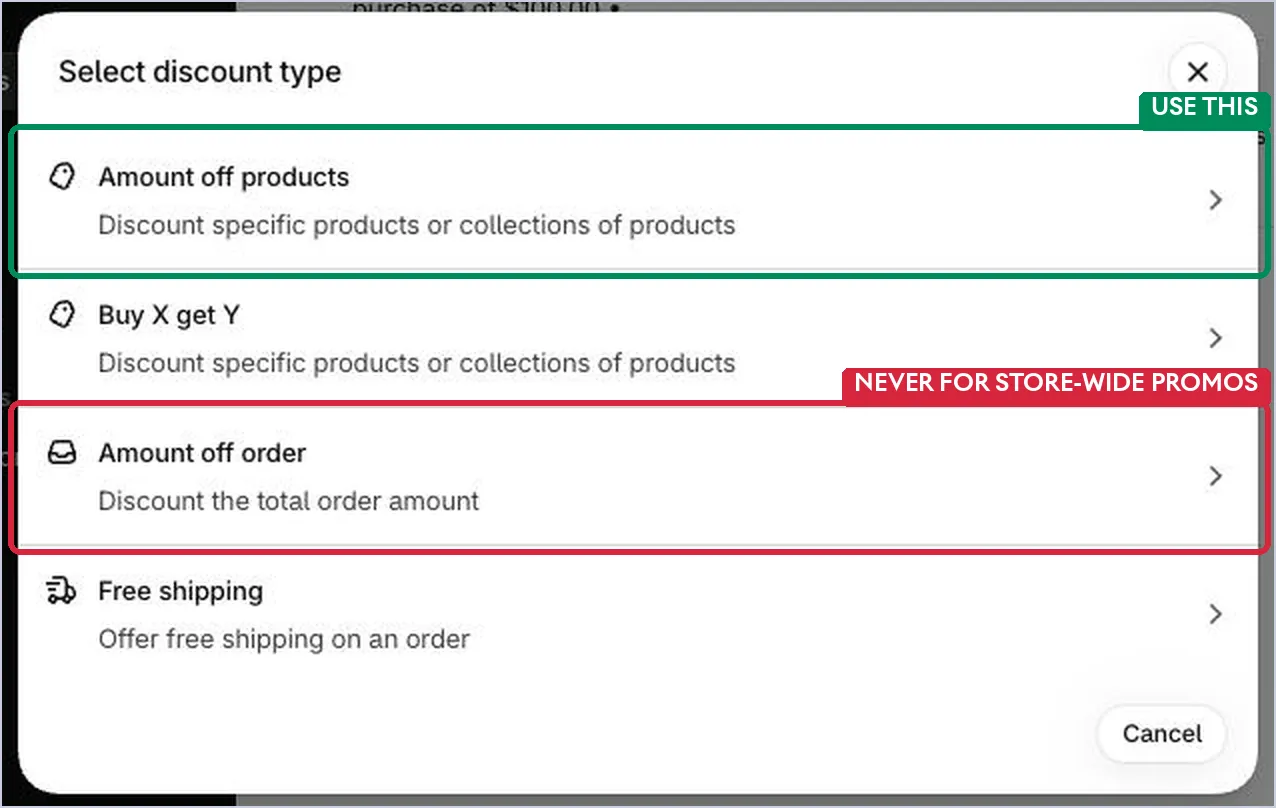
Figure 7. Choose Amount off products. Amount off order cannot leave out a collection.
Discount value and Applies to
Section titled “Discount value and Applies to”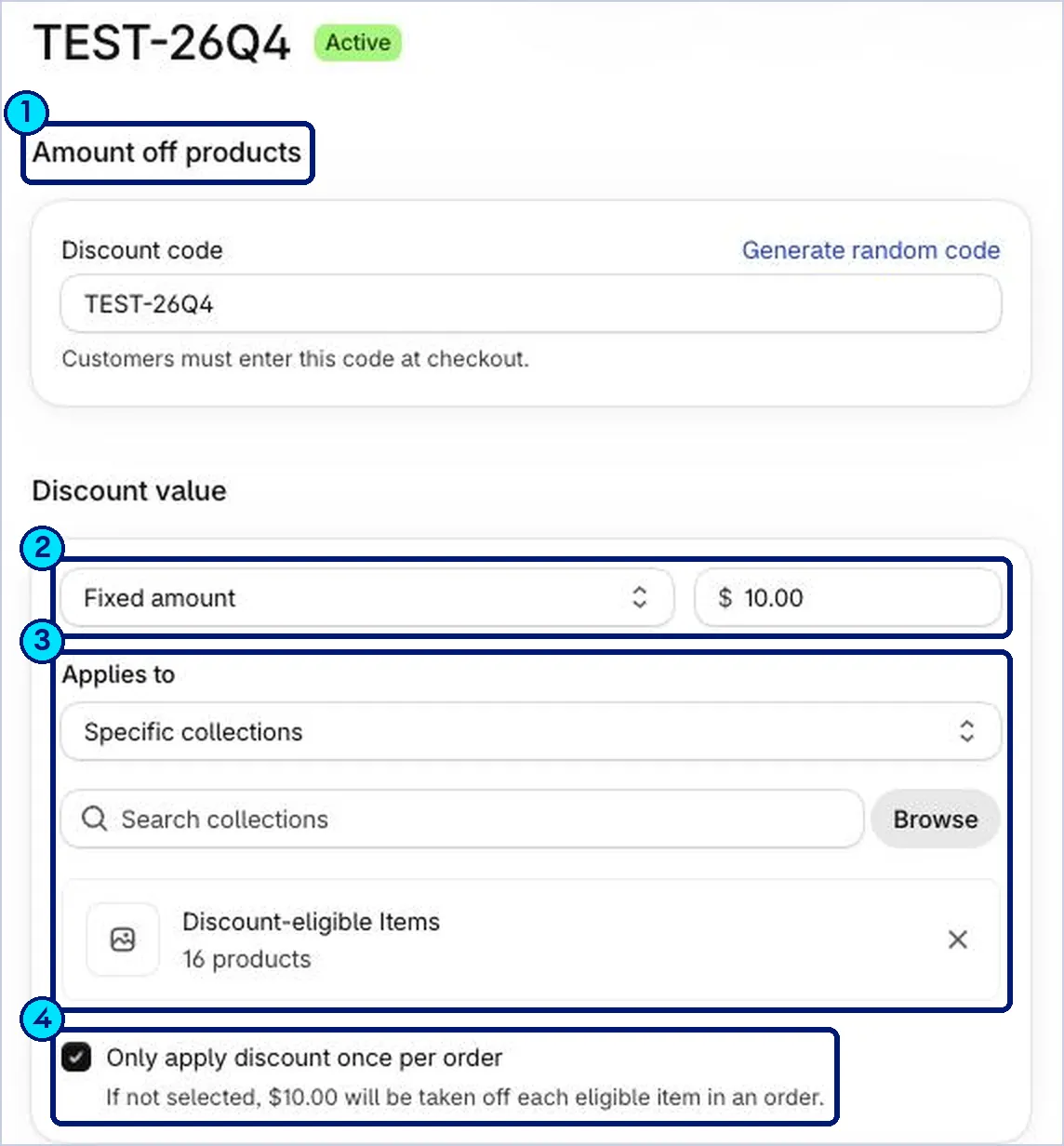
Figure 8. A $10-off promotion set up as a product discount on Discount-eligible items.
- The page heading confirms the type: Amount off products.
- Discount value: the same percentage or amount as the promotion.
- Applies to: choose Specific collections, then browse to Discount-eligible items.
- For a fixed amount, check Only apply discount once per order. Unchecked, $10 comes off every eligible item.
| If the promotion is… | Set the product discount to… |
|---|---|
| A percentage, for example 20% off | The same percentage |
| A fixed amount, for example $10 off | The same amount, with Only apply discount once per order checked. Unchecked, $10 comes off every eligible item. |
| A minimum purchase, for example $50 | Decide the new minimum. Only eligible items count now, so the same number is harder to reach when a cart has a gift card. |
| Combined with other discounts | The same choices, then open each other discount and confirm it allows the combination too |
Minimum, limits and combinations
Section titled “Minimum, limits and combinations”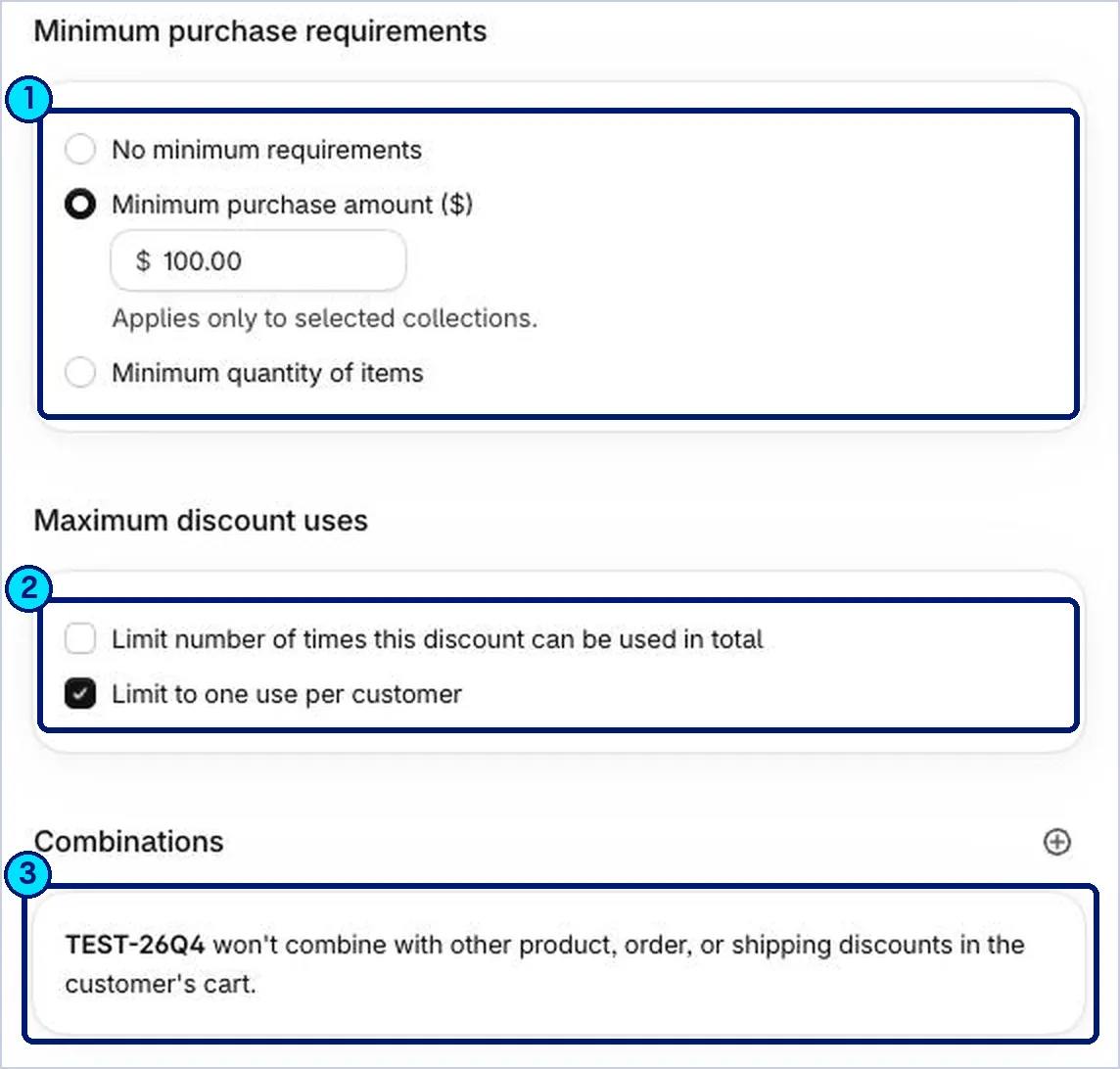
Figure 9. The rest of the form. Copy these from the original promotion.
- Minimum purchase: Shopify notes it “Applies only to selected collections”. Gift cards no longer count toward it.
- Maximum discount uses: keep the same total limit and Limit to one use per customer setting.
- Combinations: match the original, then confirm the other discounts allow it too.
Keep everything else as it was:
- Discount code and title
- Start and end dates
- Customer eligibility
- Total usage limit
- Limit to one use per customer
- Sales channels
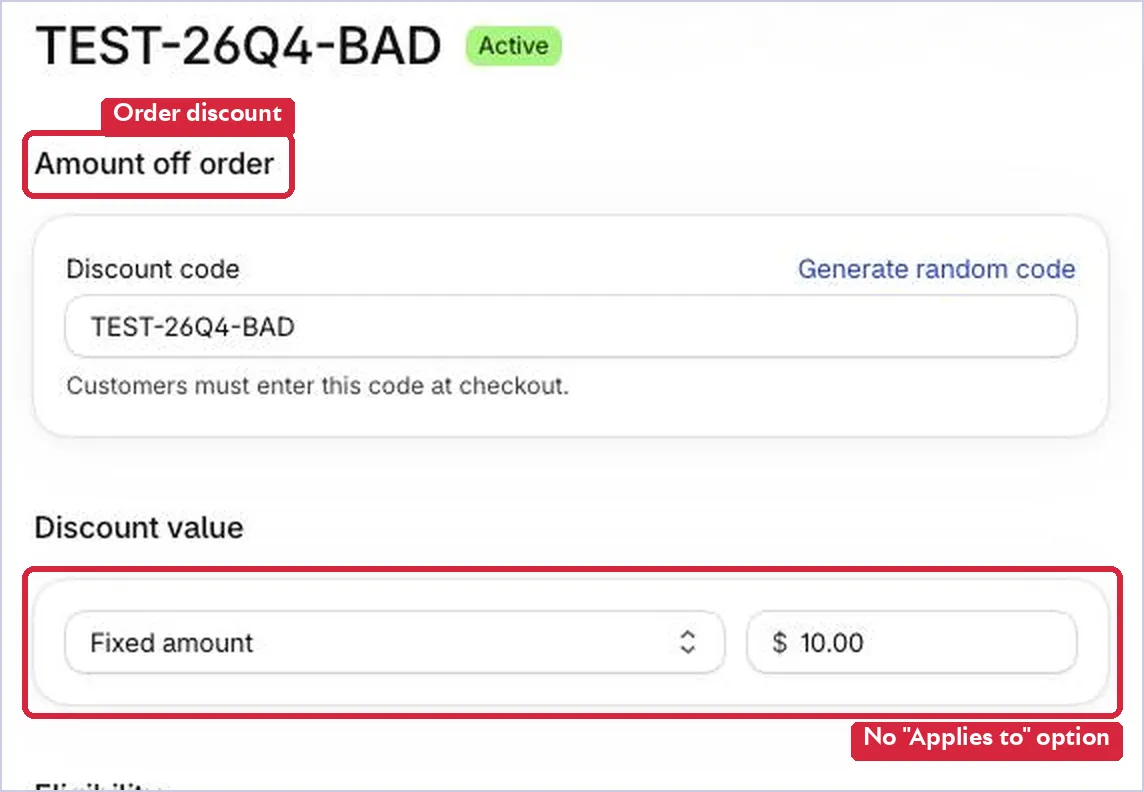
Figure 10. The same $10 promotion built as Amount off order. It discounts gift cards too.
Part 3: Move your existing order discounts
Section titled “Part 3: Move your existing order discounts”The Shopify admin has no setting that turns an Amount off order discount into an Amount off products discount. Once a discount is created, its type is fixed in the admin. You have two ways to move an existing order discount, and they are not the same thing:
| A · Convert with the Admin API (recommended) | B · Replace it in the admin | |
|---|---|---|
| What happens | The existing discount is updated in place and becomes a product discount | You create a new product discount and retire the old one |
| Discount code | Stays the same | Must be a new code, or the old discount must be deleted first (see Naming) |
| Usage history | Kept | Starts at zero on the new discount |
| One use per customer | Customers who already used the code are still refused | Customers who used the old code can use the new one |
| Total usage limit | Continues from where it was | Restarts; set it to the remaining uses by hand |
| Who can do it | A developer with API access (see the appendix) | Anyone with access to Discounts |
Find the order discounts
Section titled “Find the order discounts”Open Discounts. The Type column and the summary line under each title show which discounts are product discounts and which are order discounts.
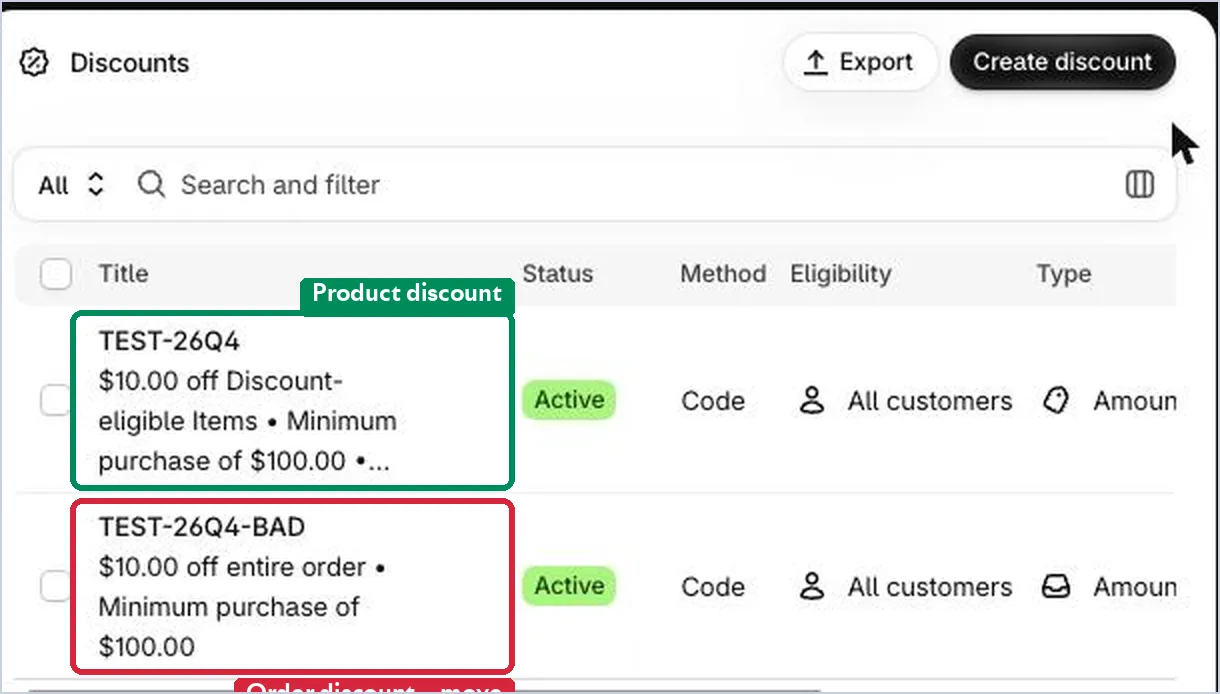
Figure 11. The Discounts list. Order discounts read “off entire order”; product discounts name the collection.
Sort your discounts
Section titled “Sort your discounts”| Group | What to do |
|---|---|
| Expired, deactivated or used up | Leave alone |
| Single-code amount off order discounts | Convert first with the API (option A), or replace them (option B) |
| Automatic order discounts | Convert next, one at a time; check what they combine with |
| Bulk codes (many codes on one discount) | Convert with the API only. Replacing them means reissuing every code. Check that every code keeps its history. |
| App or Functions discounts, Buy X get Y, special promotions | Manual review with the app owner |
| Free shipping discounts | No change; they don’t discount the gift card itself |
Whichever option you use, record each discount’s original settings, remaining uses, and what changed. That record is your rollback plan.
Option A · Convert with the Admin API
Section titled “Option A · Convert with the Admin API”A developer updates each existing discount so that it applies to the Discount-eligible items collection, and, for a fixed amount, applies once per order. The appendix has the scopes, a dry-run plan and an apply step.
Test one first. Convert one low-risk discount. Then open it in the admin and check the summary panel before you convert the rest.
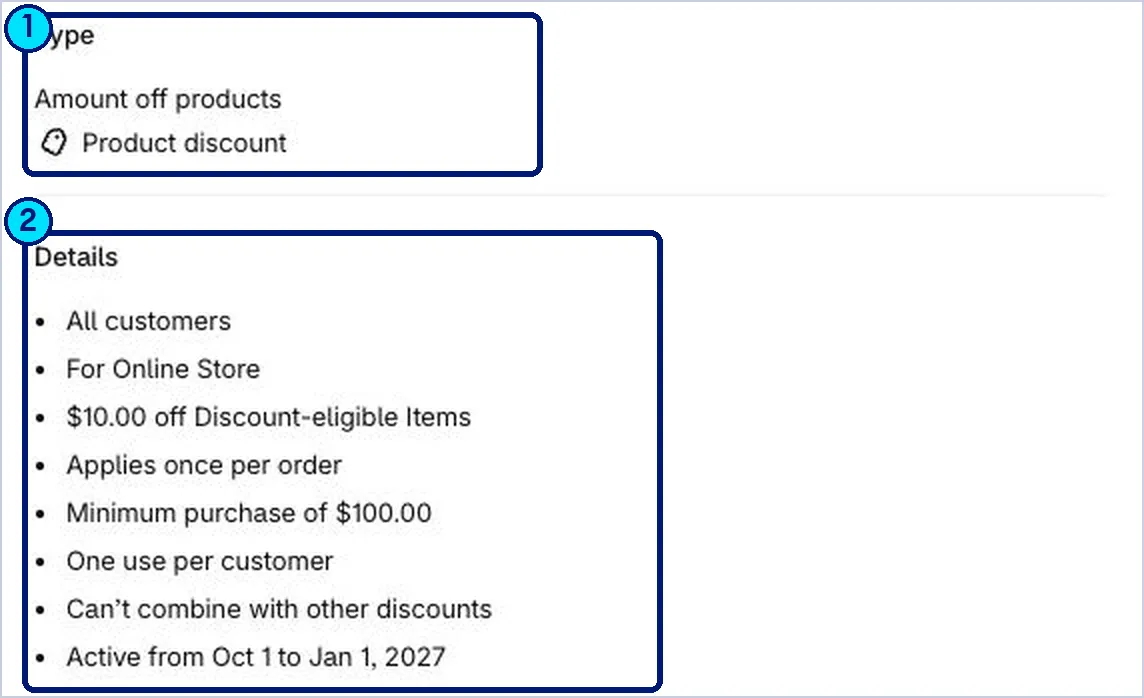
Figure 12. The summary panel of a converted discount.
- Type reads Amount off products · Product discount.
- Details name Discount-eligible Items and, for a fixed amount, “Applies once per order”. The code is unchanged and the usage count under Performance has not reset.
Option B · Replace it in the admin
Section titled “Option B · Replace it in the admin”Use this only if no one can run the API conversion. It is not a change to the old discount: it is a new discount with a new history, so plan the code name first.
- Open the old discount and record every setting: code, value, minimum purchase, customer eligibility, usage limits, remaining uses, combinations, dates and sales channels.
- Create a new Amount off products discount as in Part 2, applied to Discount-eligible items, with the same settings. If the old discount had a total usage limit, set the new limit to the remaining uses.
- Give it the code you chose under Naming.
- Retire the old discount: deactivate it if you used a new code, or rename or delete it if you are reusing the code.
Part 4: Test, then go live
Section titled “Part 4: Test, then go live”Test each converted or replacement discount with these carts before you tell customers or move the next batch.
| Cart | What should happen |
|---|---|
| Merchandise only | Same discount as before |
| Gift card only | Code is not applied; full price |
| Merchandise and a gift card | Discount on merchandise only; gift card at full price |
| Fixed amount, 3 eligible items | The amount comes off once, not 3 times |
| Just under and just over the minimum, with and without a gift card | Discount applies only when eligible items reach the minimum |
| Customer who already used a one-use code | Code is refused (converted discounts only; a replacement starts with no usage history) |
| Before the start date and after the end date | Code is refused |
| With your other active discounts | They combine, or the better one wins, as you intend |
| Each currency or market you sell in | Same results |
Go live in small batches
Section titled “Go live in small batches”- Convert or replace 2 or 3 discounts and test them.
- Place one real order that mixes merchandise and a gift card. Confirm Totus fulfills the card for its full amount.
- Move the rest in batches, keeping your record of each change.
- If a discount misbehaves, roll it back from your record: restore a converted discount’s original settings through the API, or deactivate a replacement and reactivate the old discount (possible only if you kept it under its own code).
After you go live
Section titled “After you go live”| If you… | What happens |
|---|---|
| Add a new gift card product | It is discountable until you tag it or add it to Non-discountable items. Do that before you publish it. |
| Create a new promotion as Amount off order | It discounts gift cards again |
| Rename or delete either collection | Discounts that use it stop working as set up |
| Set a product to Draft or Archived | It leaves Discount-eligible items until it is Active again |
| Change the Exclude rule on Discount-eligible items | Gift cards can slip back in. Recheck Step 3. |
Appendix: Scripted migration
Section titled “Appendix: Scripted migration”For developers converting many discounts in place through the GraphQL Admin API. The plan step only reads and reports. The apply step writes, one small batch at a time, and only after approval.
Two API notes: read discountClasses, since the single discountClass field is deprecated. And asyncUsageCount updates in the background, so it can run behind real usage; treat remaining uses as an estimate.
PLAN MIGRATION (dry run, no writes)  verify Discount-eligible items contains no gift card product  candidates = read ALL pages of discounts whose classes include ORDER  for each discount:    read full configuration and ALL pages of redeem codes    if expired, deactivated, or no longer ORDER:      record SKIPPED; continue    if not a single-code amount off discount (DiscountCodeBasic):      record MANUAL REVIEW; continue    remaining = UNLIMITED if usageLimit is null                else max(0, usageLimit - asyncUsageCount)   # estimate    if remaining == 0:      record SKIPPED: used up; continue    patch = items: all items -> Discount-eligible items collection    if fixed amount:      keep amount; set appliesOnEachItem = false    warnings += minimum purchase now counts eligible items only    warnings += combinations now follow product discount rules    save original config, config fingerprint, patch,         remaining uses, warnings, rollback patch  return report for approval
APPLY APPROVED PLAN  require: single-discount conversion test passed  require: approval for this batch  for each approved discount, small batch first:    re-read current record    if already converted and verified: continue    if config changed since planning: record CONFLICT; continue    if now expired or used up: record SKIPPED; continue    journal BEFORE_WRITE    update existing discount by ID with the patch only    if result unclear: read back before any retry    if API refuses the change:      stop batch; record MANUAL REVIEW      do NOT recreate automatically    read back and verify:      discountClasses is PRODUCT      discount ID and redeem code IDs unchanged      usage count not lower than before      items = Discount-eligible items; value correct      limits, dates, customer rules unchanged    journal VERIFIED  run the checkout tests above  report verified, failed, skipped, manual review
Sources
Section titled “Sources”Copyright © 2026 Totus.