
Set Up Physical Gift Cards in Shopify
Make one Shopify product so Totus can pick, pack, activate and ship each card
Totus picks, packs, activates and ships each physical gift card. You make one product in Shopify. This guide shows how.
How it works
Section titled “How it works”| Step | Who | What happens |
|---|---|---|
| 1 | Your store | A customer buys a physical gift card product in your store. |
| 2 | Shopify | Shopify sends the order to Totus, the fulfillment provider on each variant. |
| 3 | Totus | Totus picks and packs the card. |
| 4 | Totus | Totus activates the card for the amount bought, and ships it. |
| 5 | Totus | Totus marks the order fulfilled and updates the order status in Shopify. |
What Totus does
Section titled “What Totus does”- Sets up your physical card program and its card amounts, and sends you the list.
- Turns on Totus fulfillment for your eCommerce store. Totus then shows in Shopify as a fulfillment provider.
- Connects each amount in your Shopify product to your card program.
- Picks, packs, activates and ships each card, then marks the order fulfilled.
What you do
Section titled “What you do”- Install the Totus app in your Shopify store.
- Make one physical gift card product, with one variant for each card amount offered (see Set up your product below).
- Set Totus as the fulfillment provider on every variant, and publish it.
- Tell Totus when the product is ready.
Before you start
Section titled “Before you start”- The Totus app is installed in your store. See How to install the Shopify App.
- You have the card amounts from Totus, for example $25, $50 and $100. Use only these amounts. Totus cannot fulfill a variant not listed on the product.
- Totus tells you that fulfillment is on. You can then choose Totus as a fulfillment provider on a variant.
- You have card artwork, a product photo and a description for your store page.
Set up your product
Section titled “Set up your product”All of these steps are in the Shopify admin. The illustration shows what the finished product looks like.
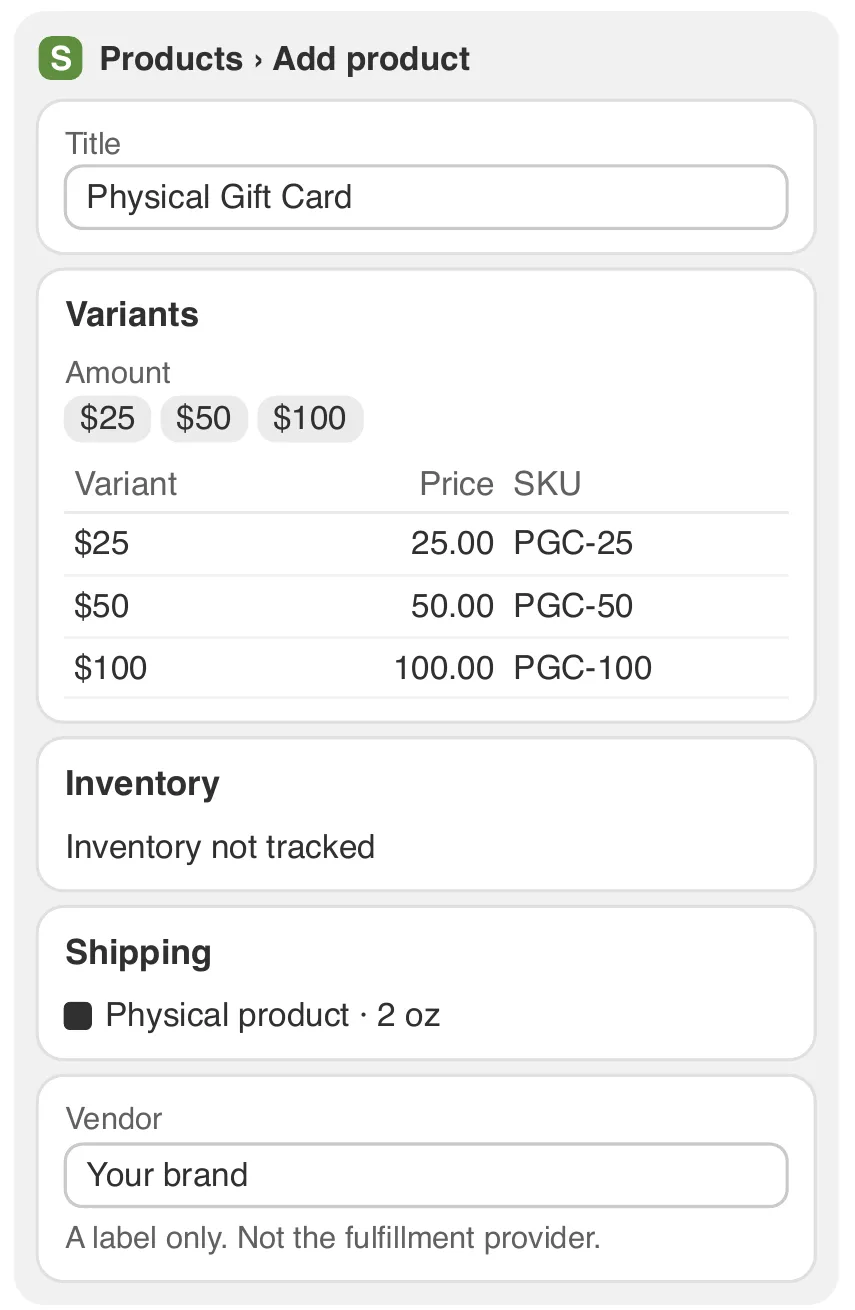
Illustration of the finished product. Shopify can change the layout.
Step 1. Add a product
Section titled “Step 1. Add a product”Go to Products › Add product.
Give it a title, for example Physical Gift Card, a description and photos. Shopify can suggest the Gift Cards category. Change it, for example to Uncategorized. Save the product.
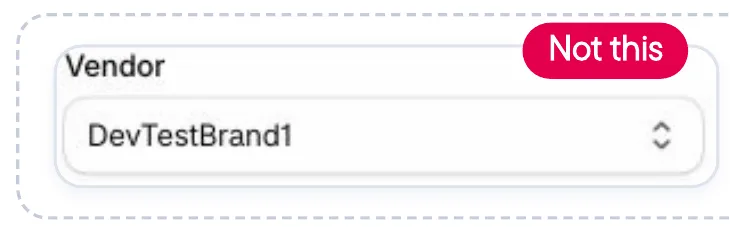
Vendor is only a label. It does not send orders to Totus (see Step 4).
Step 2. Make one variant for each Totus amount
Section titled “Step 2. Make one variant for each Totus amount”Go to Variants › Add options like size or color.
- Option name: Amount. Add one value for each amount on the list from Totus. Do not add other amounts.
- Price: the card amount, exactly. A $50 card costs 50.00.
- SKU: give each variant its own SKU, for example PGC-50.
Step 3. Turn off quantity tracking, turn on shipping
Section titled “Step 3. Turn off quantity tracking, turn on shipping”- Inventory: do not track inventory (Inventory not tracked). Totus keeps the card stock.
- Shipping: turn on Physical product. Enter a weight, for example 2 oz.
Step 4. Set Totus as the fulfillment provider on every variant
Section titled “Step 4. Set Totus as the fulfillment provider on every variant”This is the most important step. It is set on each variant, not on the product. Set Totus on every variant below shows each click.
Step 5. Send orders to Totus
Section titled “Step 5. Send orders to Totus”Request fulfillment on each order, or turn on automatic requests. Your Totus Client Success Manager can help.
Step 6. Publish, then tell Totus
Section titled “Step 6. Publish, then tell Totus”Set the status to Active and choose sales channels. Email your Totus Client Success Manager the product name. Totus connects each amount. Then place one test order.
Set Totus on every variant
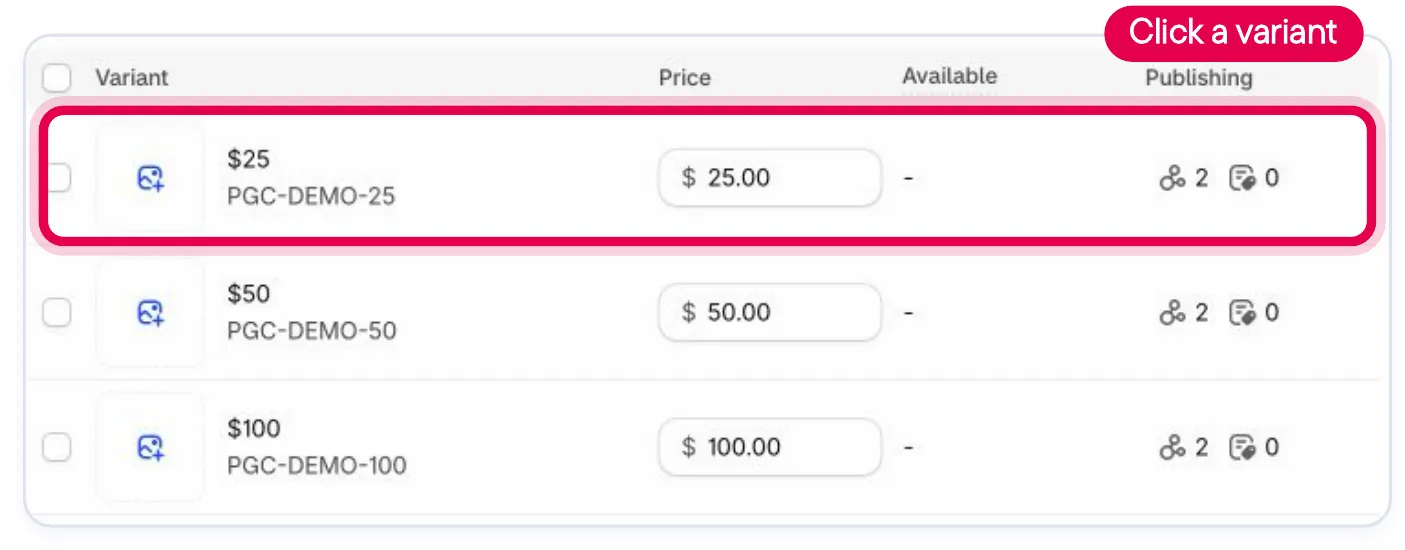
Section titled “Set Totus on every variant”Each amount ($25, $50, $100…) is a variant. Each variant has its own fulfillment setting, so set Totus on each one. Do this after you save the product. These are real Shopify screens.
A. Open a variant
Section titled “A. Open a variant”On the product page, scroll to Variants. Click the first amount, for example $25.
B. Click the pencil in Inventory
Section titled “B. Click the pencil in Inventory”On the variant page, find the Inventory box. Click the pencil next to “… location fulfills this”.

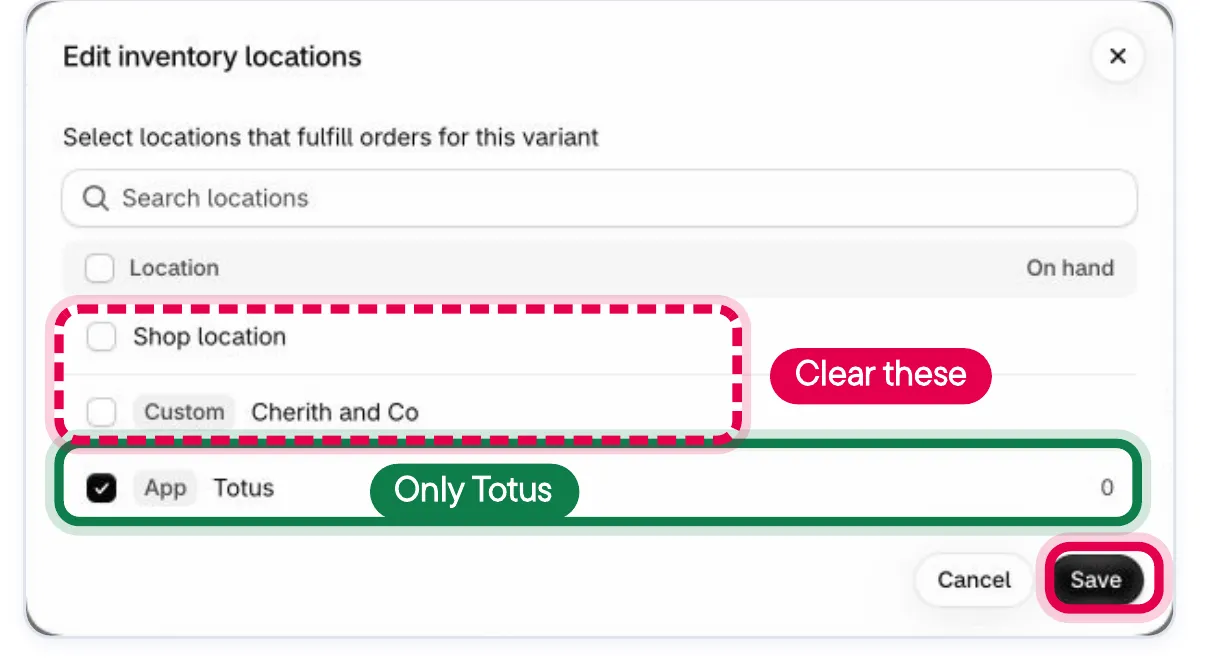
C. Select only Totus, then Save
Section titled “C. Select only Totus, then Save”The Edit inventory locations window opens. Check Totus (it is labeled App). Clear every other location, such as your shop or warehouse. Click Save.
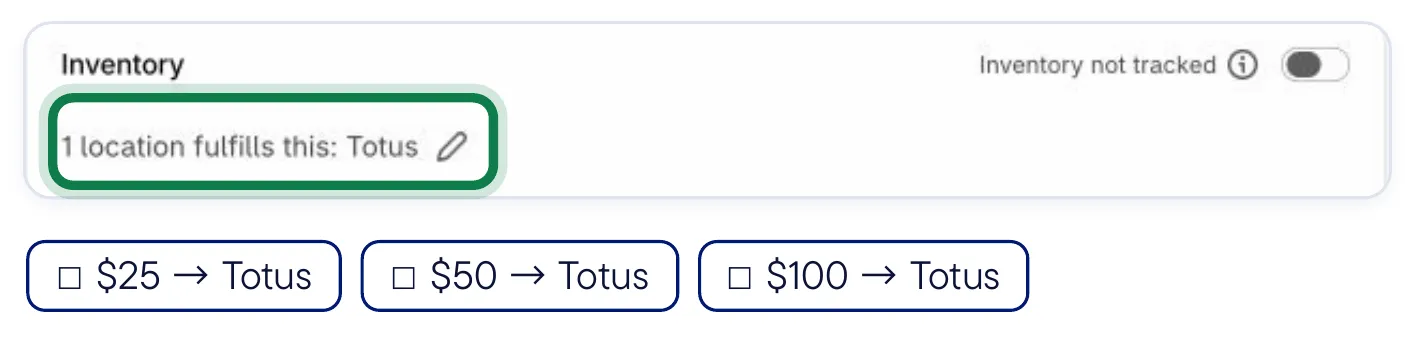
D. Check it, then do the next variant
Section titled “D. Check it, then do the next variant”The Inventory box now says 1 location fulfills this: Totus. Go back to the product, open the next amount and repeat A to C, until every variant says Totus.
After you go live
Section titled “After you go live”Tell your Totus Client Success Manager before you make one of these changes:
| If you… | What happens |
|---|---|
| Change a variant’s price | The card still loads the old amount until Totus updates the connection. |
| Add a new amount | Totus must add it to your program first. Until then, its orders are not fulfilled. |
| Change a variant’s fulfillment provider | Orders go to the new provider and never reach Totus. |
| Delete a variant or the product | Totus gets no new orders for it. |
Copyright © 2026 Totus.